
Most issues in Bloom show up as a red toast with a short message. This guide groups the messages you are most likely to see, explains what triggered each one, and gives the quickest fix. If a section does not cover your problem, contact hi@bloom.study with the exact error text and a screenshot.
Login and access
“Hmm, that code didn’t work. Double-check and try again!”
This appears on the learner login screen when a class code is mistyped, expired, or for a Bloom that has been archived. Codes are case-insensitive but must be exact. Ask your educator for the current code, or use the join link they shared instead.
“Name can only contain letters, spaces, hyphens, and apostrophes.”
Shown when signing up or editing your profile. Bloom does not accept numbers, emojis, or symbols in the name field. Enter your real name, then add a display preference later if needed.
SSO redirect loops or “not authorised” after sign-in
If your institution uses SSO, sign in through the link your administrator provided, not the standard email form. Clear cookies for app.bloom.study and try again. If the loop persists, your IT team needs to confirm Bloom is an approved app in your identity provider.
File uploads and knowledge base
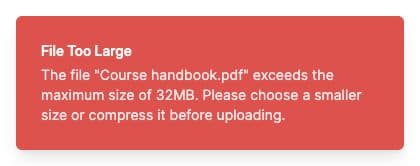
“File exceeds 32MB. Please compress…”
Bloom rejects any single file larger than 32MB. For PDFs, export at a lower DPI or remove embedded videos. For slide decks, save as PDF or split the deck across multiple files.
“Only DOCX, DOC, PDF, PPTX, JSON, TXT and Markdown files are supported.”
The knowledge base only ingests these formats. Convert spreadsheets to CSV exported as TXT, and convert images of text to PDF using OCR before uploading.
“Contains unsupported characters. Please rename…”
Filenames with slashes, colons, or non-Latin punctuation are rejected. Rename the file using letters, numbers, hyphens, and underscores, then re-upload.
“You can only upload up to {N} files.” or “You can only upload up to 50 files at a time.”
The first message is your plan’s knowledge base limit per Bloom. Delete unused files, or ask your Space Owner to upgrade. The second message is the per-batch ceiling: split your selection into groups of 50 or fewer.
Files uploaded but not referenced in answers
Indexing runs after upload and can take a few minutes for large documents. Open the Knowledge Base tab to see processing status. If a file is stuck for more than ten minutes, delete it and re-upload.
Chat, canvas, and voice mode
“Canvas text is too long. Please shorten it and try again.”
The canvas has a per-document length limit so feedback stays focused. Trim the document, or split it into two canvases, then resubmit.
“Save failed: text exceeds the word limit”
Educators can set a word limit on canvas tasks. The save will only succeed once you are at or below the cap. The current count appears in the canvas footer.
“No microphone device was found”
Voice mode needs an active microphone and browser permission. Check your operating system sound settings, then click the lock icon in the address bar and allow microphone access for app.bloom.study. Reload the tab after granting permission.
Bloom will not answer a question
Bloom refuses requests that fall outside the subject scope or that ask it to bypass the educator’s instructions. Rephrase the question to relate to the course, or open a different Bloom for off-topic study.
Conversations and Blooms
“You can only pin up to 10 conversations.”
Unpin an older conversation from the sidebar before pinning a new one. Pins are per-Bloom, so a different Bloom has its own quota.
“There was a problem deleting the conversation. Please try again.”
Usually a transient network issue. Refresh and retry. If it repeats, contact hi@bloom.study with the error message.
“You’ve reached the maximum number of Blooms.”
Your teaching space has hit its plan ceiling. Archive an unused Bloom, or upgrade the space’s plan. Only Space Owners can change the plan.
Billing, seats, and plans
“Staff limit reached ({n}). Please upgrade your plan or remove a staff member.”
Growth plans have a fixed staff cap (for example, Growth 30 includes 3 staff seats). Remove an inactive educator from the space, or upgrade to a tier with more staff seats.
“Payment Failed” banner with “Please update your payment method or Request Help.”
Stripe could not charge the card on file. Open the customer portal from the plan page, update the card, then check the billing page for the payment status and any further instructions.
“Teaching space does not have a Stripe customer ID”
Billing may not be set up for this Teaching Space yet. If you have already paid or need help accessing invoices, email hi@bloom.study with the space name.
Subscription cancellation banner
If you see a banner saying your subscription is set to cancel at the period end, you can reverse the cancellation at any time before that date from the plan page. After the period ends, the space falls back to the Free plan and feature limits apply.
SSO and LTI integrations
“Issuer invalid: not registered”
Ask your LMS administrator to check the connection details with the Bloom team at hi@bloom.study. Include the exact error message and the LMS you are using so they can confirm the registration.
LTI launches open Bloom but show no Blooms
Ask your educator or Space Owner to check that you have access to the intended Bloom. If your access is correct, ask your LMS administrator to check the course link with the Bloom team.
What’s next
- Confirm your browser is supported → Browser support
- Using Bloom on a phone or tablet → Mobile access
- Still stuck? Contact the Bloom team with the exact error text, your browser, and a screenshot.