
Bloom ships with a small set of keyboard shortcuts so you can move through conversations, start a new chat, focus the input box, and toggle the sidebar without reaching for the mouse. Every shortcut is listed inside the app under the Keyboard Shortcuts dialog, and you can open that dialog from anywhere with a single key combination.
Shortcuts work in any modern desktop browser. Mac users see the ⌘ Command key in the dialog; Windows, Linux, and ChromeOS users see Ctrl. The shortcuts themselves are identical, only the modifier key changes.
Quick reference table
Here is every shortcut Bloom currently supports, with both key sets:
| Action | Mac | Windows / Linux |
|---|---|---|
| Open the keyboard shortcuts panel | ⌘ + / | Ctrl + / |
| Start a new chat | ⌘ + Shift + O | Ctrl + Shift + O |
| Toggle the sidebar | ⌘ + Shift + S | Ctrl + Shift + S |
| Focus the chat input | Shift + Esc | Shift + Esc |
| Jump to the next user message | Shift + ↓ | Shift + ↓ |
| Jump to the previous user message | Shift + ↑ | Shift + ↑ |
| Send the message you have typed | Enter | Enter |
| Insert a new line in the chat input | Shift + Enter | Shift + Enter |
Step 1: Open the shortcuts panel
The fastest way to remind yourself which keys do what is to press ⌘ + / on Mac, or Ctrl + / on Windows. A small dialog opens listing every shortcut. You can also open it from your avatar menu in the top right: click your initials, then choose Keyboard Shortcuts.
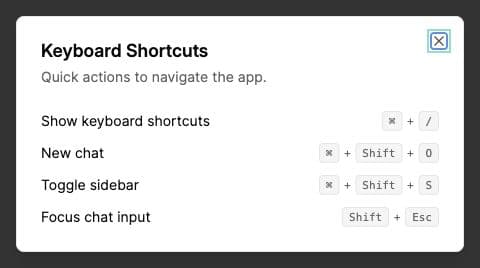
Press ⌘ + / (or Ctrl + /) again, or hit Esc, to close the panel.
Step 2: Chat shortcuts
These are the shortcuts you will reach for during a normal back-and-forth with your Bloom.
Start a new chat
Press ⌘ + Shift + O (Mac) or Ctrl + Shift + O (Windows) to open a fresh conversation in the current Bloom. This is the same action as clicking the New Chat button at the top of the sidebar.
Focus the chat input
Press Shift + Esc to drop your cursor straight into the message box, no matter where you have clicked. Useful when you have just finished reading a long reply and want to type without scrolling back down.
Send a message
Press Enter to send. Bloom does not require a modifier key like some other chat apps; a plain Enter submits whatever you have typed.
Step 3: Navigation shortcuts
Toggle the sidebar
Press ⌘ + Shift + S (Mac) or Ctrl + Shift + S (Windows) to show or hide the conversation list on the left. On smaller screens this gives the chat area a lot more room, and on larger screens it is handy when you want to focus on a single answer.
Jump between user messages
In a long conversation, press Shift + ↓ to scroll to the next thing you said, or Shift + ↑ to jump back to the previous one. Bloom skips over the AI responses so you can retrace the questions you asked without scrubbing through replies.
Step 4: Sending messages and line breaks
Bloom uses the convention most chat apps use:
- Enter sends the message.
- Shift + Enter inserts a new line so you can write a multi-paragraph prompt or paste a longer block of text.
- Inside a bulleted list in the chat input, Shift + Enter continues the list with a new bullet rather than a soft line break.
If you tend to write longer questions (for example, pasting in a paragraph of an essay for feedback), get comfortable with Shift + Enter; it stops you from accidentally sending a half-finished message.
Common issues
The shortcut does nothing
Most often the page does not have keyboard focus. Click anywhere inside the Bloom interface (not the browser address bar or a different tab) and try again. Browser extensions that capture global shortcuts (Vimium, password managers, screen recorders) can also intercept ⌘ + / or ⌘ + Shift + O; pause the extension and retry to confirm.
Shift + arrow selects text instead of jumping messages
That is expected when your cursor is in the chat input with text in it. Bloom respects normal text-selection behaviour while you are typing. Move focus out of the input first, then use Shift + ↑ or Shift + ↓.
Shortcuts do not work on mobile
Mobile browsers do not surface the same modifier keys, so the dialog and shortcuts are desktop-only. On phones and tablets, every shortcut has an equivalent button or menu item. See Can I use Bloom on mobile? for the touch-friendly equivalents.
Pressing Enter sends the message before I am ready
Use Shift + Enter for line breaks while drafting. There is no setting to swap the two; this matches the behaviour students and educators reported as least surprising.
What’s next
- Check that your browser is supported → Browsers and devices
- Working from a phone or tablet? See Using Bloom on mobile
- Open Bloom and try the shortcuts now → app.bloom.study