
To upload course materials, open your Bloom, click the Knowledge Base tab, then drag files into the upload area or click Upload File. Once your files are listed under pending sources, click Ingest to process them. Bloom supports DOCX, DOC, PDF, PPTX, XLSX, CSV, JSON, TXT, and Markdown files up to 32 MB each. Uploaded videos have a separate limit of 500 MB and 30 minutes.
Once processing is complete, Bloom can use these materials to answer students’ questions and point them to relevant sources.
Before you start
You need:
- A Bloom you have already created. See How to create your first Bloom.
- A role that allows configuring the Bloom: Space Owner or Bloom Manager.
- Your files in a supported format and within the limits below. For very long or complex documents, consider uploading the relevant sections separately.
- Available knowledge-base slots on your plan.
Step 1: Open the Knowledge Base tab
From the Manage Blooms dashboard, click the Bloom you want to add materials to. On the configuration page, click the Knowledge Base tab.

If you do not see the tab, your role on this Bloom does not allow configuration changes. Ask the Space Owner.
Step 2: Add files
You have three ways to add content:
Drag and drop
Drag files from your computer onto the dashed upload area. The area highlights when you hover.
File picker
Click Upload File and choose files from the dialog. Hold Ctrl (Windows) or Cmd (Mac) to select multiple.
Add a URL
Click Add URL to ingest content from a web page. Bloom fetches the page text and treats it like an uploaded document. Useful for syllabus pages, public reading lists, or open-access articles.
Supported file types
- Documents:
.docx,.doc,.pdf - Slides:
.pptx - Text:
.txt,.md,.markdown - Data:
.json
Spreadsheets: .xlsx and .csv are also supported. Use clear headings so students can identify the data they want to ask about.
Uploaded videos: choose an MP4, MOV, or WebM file using the file picker. Each video must be no larger than 500 MB and no longer than 30 minutes.
YouTube: use Add YouTube Video and paste the YouTube link. Review the source in the pending list before starting processing.
Documents and spreadsheets have a 32 MB limit per file. The upload control shows how many files you can add. Apple Pages, Keynote, older XLS spreadsheets, standalone audio, and images are not supported in this upload flow; export a supported document format where appropriate.
Step 3: Review pending sources
After you add files, they appear in an amber box labelled “{N} pending source(s)” above the saved-files table. Each row shows the filename, size, and a status badge: Pending, then Uploading, then Uploaded.
Files at this stage are stored but not yet searchable by the AI. You need to ingest them.

Step 4: Click Ingest
Click the Ingest {N} Source(s) button at the top right of the pending box. The number updates to match how many files are pending.
A progress bar appears showing:
- “Processing {current} of {total} files · {current operation}”
- A percentage from 0% to 100%
- The current processing step, such as “Extracting text”
Processing time depends on the file type, length, and content. A long document or video can take 5 minutes or more. The progress display updates automatically while Bloom prepares your files.

Step 5: Set access levels
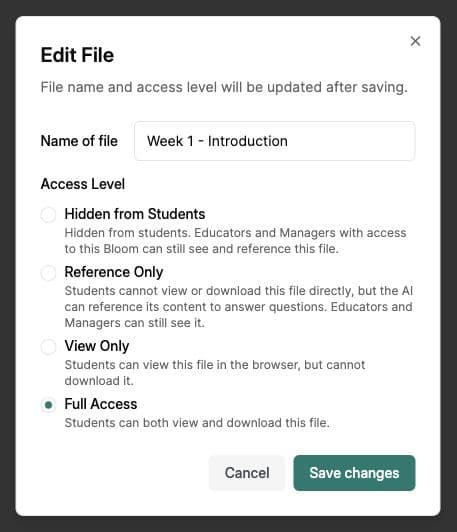
After ingestion finishes, files appear in the saved sources. Open a source’s menu and chooseEdit to set its access level:
| Access level | What students see | What the AI uses it for |
|---|---|---|
| Hidden from Students | Nothing | Excluded from AI retrieval. Bloom Managers and Space Owners can manage the file in the Knowledge Base. Educator-only and student accounts cannot browse it in the Library. |
| Reference Only | A citation if the AI quotes from it | Used in answers and citable, but students cannot open the file. |
| View Only | Filename and can open in viewer | Used in answers, students can read it but not download. |
| Full Access | Filename and can download | Used in answers, students can download and keep a copy. |
Common issues
“File exceeds 32MB”
Save a smaller copy of the PDF using your document editor, or split it into smaller files. Check that each file is under 32 MB before uploading again.
The file type is not supported
Check the supported formats above. Export Apple Pages to PDF, Keynote to PPTX or PDF, and older Excel files to XLSX or CSV. Changing the filename extension alone does not convert a file.
“Contains unsupported characters. Please rename...”
Special characters in the filename. Rename the file on your computer (for example, “Week 1: Cells.pdf” → “Week-1-Cells.pdf”) and re-upload.
“You can only upload up to {N} files”
Your plan’s knowledge-base limit is full. Either delete files you no longer need (trash icon on each row), or upgrade your plan.
Processing is busy or a source failed
Check the status and error message beside the source. If Bloom asks you to retry because it is busy, leave the source in the pending list and try processing it again when prompted. Avoid uploading duplicate copies while it is still processing.
For a failed document, check that it opens on your computer and is not password-protected. For video, check the format, size, and duration. If the same source continues to fail, contact hi@bloom.study with the file type and error message.
What’s next
- Test that the AI can find your content by opening a chat and asking a question that should require the file.
- Browse all setup guides → Getting Started
- Open the Knowledge Base now → Manage Blooms