
Add a link to a whole Bloom or one published activity directly from a Canvas module. Deep Linking lets you choose the content in Bloom and return it to Canvas without copying a web address.
Before you start
- Your Canvas administrator has registered Bloom using LTI 1.3 and enabled its content-selection option in Modules.
- You can edit the Canvas course and have educator access to the Bloom you want to share, using your own Bloom account.
- To link an activity, publish it, leave Show in Activities enabled, and make sure Activities is enabled for that Bloom.
- Students have their own Bloom accounts and access to the selected Bloom. A Canvas link does not enrol students or send grades back to Canvas.
1. Open Bloom from Canvas
- Open your Canvas course and select Modules.
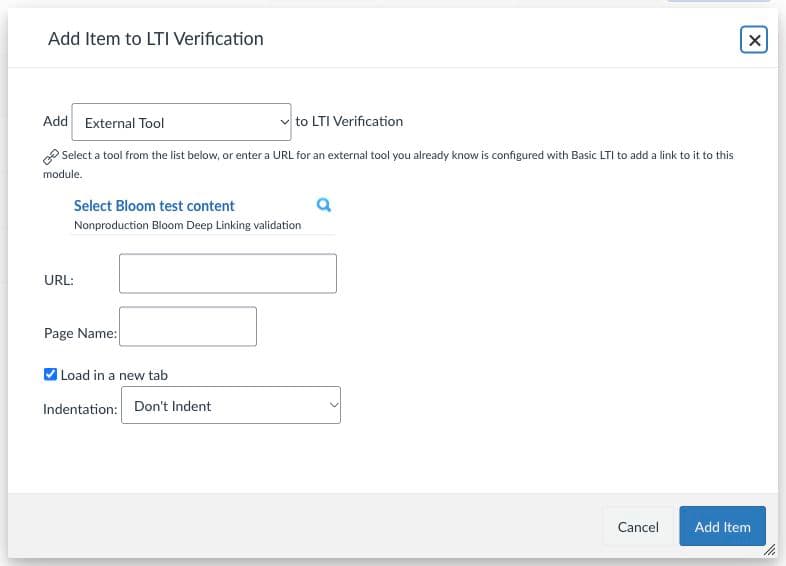
- Select the + button on the module where the link belongs.
- In the Add Item dialog, choose External Tool, then select Bloom. Your institution may use a different display name for the tool.
- If prompted, select Open Bloom to continue in a new window. Sign in to your Bloom educator account if asked.
2. Choose your content
- On Add Bloom content, choose a Teaching Space to narrow the list, then choose your Bloom.
- Select the option labelled Whole Bloom to open that tutor, or choose an Activity for a specific task. Use Search content to find a title if needed.
- Select Add to course to return the selected link to Canvas.
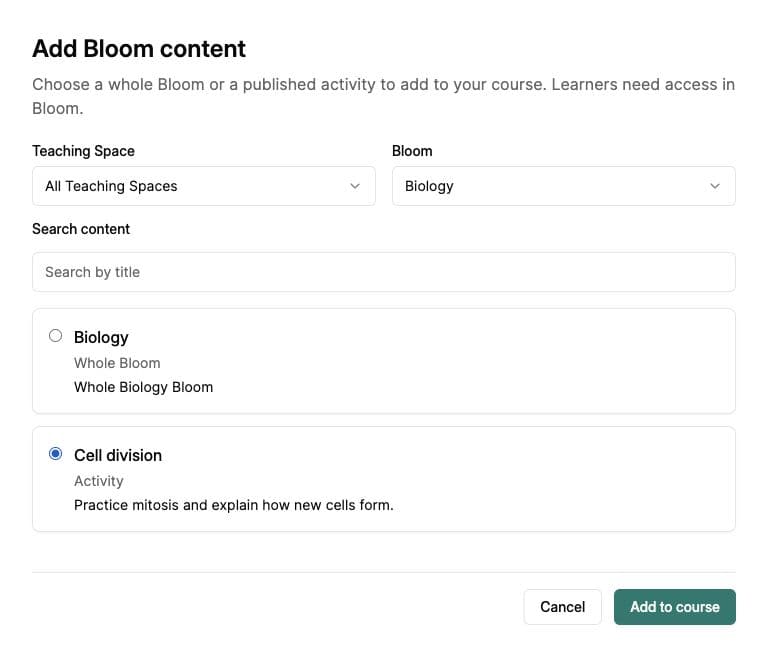
Add one item at a time. Repeat these steps for additional links. Choose Cancel to return without adding a selection.
3. Save and publish in Canvas
- Back in the Canvas Add Item dialog, check the selected title in Page Name.
- Keep Load in a new tab selected, then choose Add Item to save the link in the module.
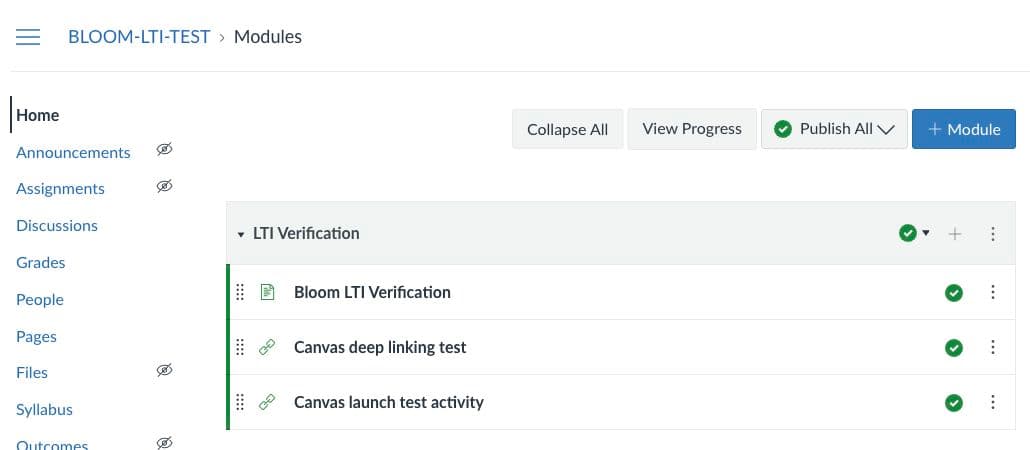
- Publish the item and its module when you are ready. Make sure the course is also available to your students.
4. Check student access
Test the saved link using a separate learner account in both Canvas and Bloom. The learner must already have access to the selected Bloom; Canvas enrolment alone does not provide it.
- A Whole Bloom link opens the selected Bloom after sign-in.
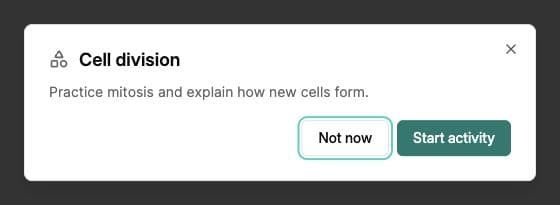
- An Activity link first shows a confirmation. The learner chooses Start activity to open the task or resume their saved conversation. Not now leaves the activity unopened.
Troubleshooting
Bloom is missing from External Tool
Ask your Canvas administrator to check that Bloom is available in this course and that its Modules content-selection option is enabled.
The Bloom or activity is missing from the picker
Check that you signed in to the correct Bloom account and have educator access in the institution's Teaching Space. Clear the search and check the selected Bloom. For an activity, confirm it is published, Show in Activities is enabled, and Activities is enabled for the Bloom.
The window does not open, or the launch has expired
Allow the Bloom window when your browser blocks a popup. If the launch expires or sign-in is interrupted, return to Canvas and open Bloom again to start a fresh selection.
A student sees Content unavailable or an access message
Check the student's Bloom account and access, and confirm the Bloom and activity are still available. An archived activity or removed permission can make a saved link unavailable. If Bloom asks you to switch accounts, follow its sign-out prompt, then reopen the Canvas link and sign in with the correct Bloom account.