
Every Bloom has its own Users tab inside the Bloom configuration page. It lists the people enrolled in that single Bloom, students plus any co-teachers, and lets you change their per-Bloom role, resend an invitation, or remove their access. This is separate from the teaching-space Users page, which controls who has access to the workspace overall.
Per-Bloom Users vs Teaching Space Users
Bloom has two different Users surfaces. They look similar but they do different jobs.
- Per-Bloom Users tab (this article): scoped to one Bloom. Shows everyone enrolled in this Bloom and their role in it (student, educator, or manager). Reached from the Bloom configuration page, Users tab.
- Teaching Space Users page: scoped to the whole workspace. Shows every member of the space across all Blooms, plus seat usage and billing. Reached from the space selector in the sidebar. Covered in How to manage users in a teaching space.
Before you start
You need:
- A Bloom that already exists. If you have not built one yet, start with How to create your first Bloom.
- A role on the Bloom that can manage users: manager on the Bloom, or Space Owner on the teaching space. An educator role alone does not grant access to Bloom configuration.
- People to manage. If your list is empty, see How to invite students to a Bloom for class codes, email invites, and LMS launches.
Step 1: Open the Users tab
From Manage Blooms, open the Bloom you want to edit. On the configuration page, click the Users tab (a person icon, second from the right on most plans). You will see a small Members banner at the top with the current enrolment count, and a paginated table of people below it.
If you are a Space Owner, the banner also shows a Manage all users button on the right that jumps you to the teaching-space Users page. Use that when you need to edit someone’s space role, archive them, or check seat usage.
Step 2: Read the table
The table has three columns:
- Name: full name with email underneath. If a status badge is shown, it tells you where the user is in their invitation flow: a yellow Invite sent badge means an email invitation has gone out and is awaiting them, a grey Invite not sent badge means they were added but the email has not been triggered.
- Role: the user’s per-Bloom role, one of student, educator, or manager.
- Actions: the three-dot menu on the right of each row.
Pages hold up to 50 users. Use the pagination controls below the table to move between pages. If someone else adds people in another tab while you are looking at the list, you may see a toast reading “New users have been added” with a Refresh action; click it to pull the latest data.
Step 3: Edit a user or change their role
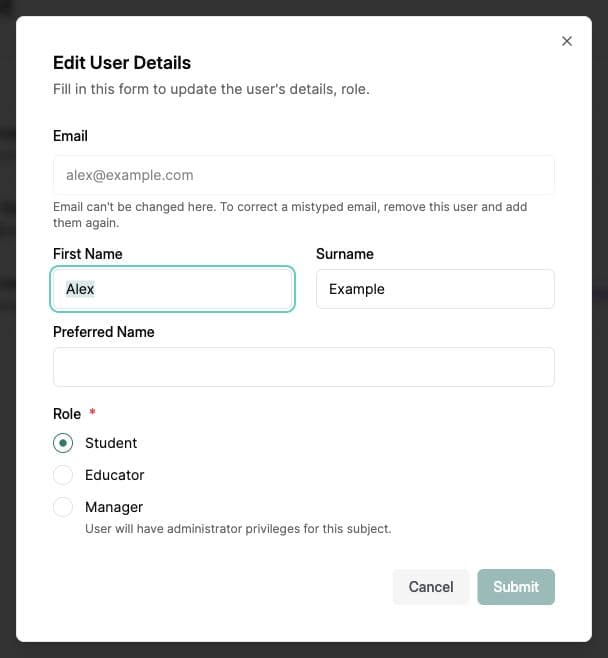
Click the three-dot menu on a row, then click Edit user. A modal opens where you can update the user’s first name, surname, preferred name, and role. Role is a radio group with three options:
- Student: chats with the Bloom, takes quizzes, uses the canvas. The default for anyone who joined via a class code or email invite. Counts as a student seat.
- Educator: configures the Bloom, uploads materials, views analytics, builds quizzes. Counts as a staff seat in the teaching space.
- Manager: full control of this Bloom, including its users. The form notes inline: “User will have administrator privileges for this Bloom.” Counts as a staff seat.
Step 4: Resend an invite or remove access
The same three-dot menu has two more actions:
- Resend invitation: only appears when the user’s status is Invite sent. Opens a confirmation reading “We’ll resend an invitation email to” followed by their address. Click Send. On success the toast reads “Invitation has been resent.”
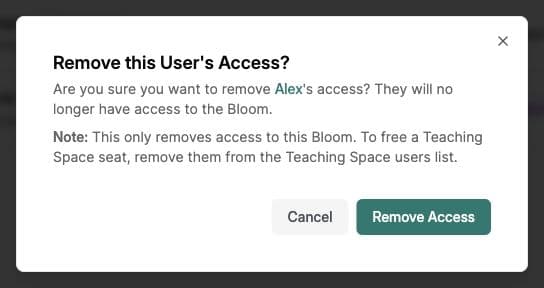
- Remove access: opens a confirmation titled Remove this User’s Access? with the explainer “They will no longer have access to the Bloom.” A note underneath reminds you: “This only removes access to this Bloom. To free a Teaching Space seat, remove them from the Teaching Space users list.” Click Remove Access to confirm.
Common issues
The Add user button is disabled
Hover over it to read the tooltip. “User limit reached for this Teaching Space” means the workspace has hit its seat cap. Either upgrade the plan, archive someone from the teaching-space Users page, or remove an inactive user there to free a seat.
I cannot see the Users tab at all
The tab only shows on existing Blooms (not on the create-Bloom flow), and only to roles that can manage users. If you are an educator rather than a manager, ask the Space Owner to promote you on this Bloom or to manage the list for you.
“User will have administrator privileges for this Bloom” warning
This is the helper text under the Manager radio in the Edit user modal, not an error. It is a reminder that managers can configure the Bloom, change other users’ roles, and remove access. Pick Educator if you want a co-teacher who can edit content but not manage people.
A removed user still shows up
Refresh the page and check that the removal succeeded. If the person still appears, check with the other people who manage the Bloom, or contact hi@bloom.study for help.
What’s next
- Get more students into this Bloom → Invite students to a Bloom
- Manage seats, archive, or bulk-remove across the whole workspace → Manage users in a teaching space
- Open the Bloom and check your roster now → Manage Blooms