
A teaching space is the workspace that holds your Blooms, your billing, and the people who use them. Managing users, who can do what, who pays a seat, and who has been archived, all happens on one page. This guide walks Space Owners and Managers through adding users, assigning roles, running bulk actions, and cleaning up at the end of a term.
Before you start
You need:
- The Owner role on the teaching space. Only owners can open the Users page, add or remove users, and change roles. Members do not see this page at all.
- Enough seats on your plan. On Growth plans, staff and student seats are counted separately (for example, Growth 30 includes 3 staff seats plus 30 student seats). If you are at the cap, the Add user button is disabled with the tooltip “User limit reached for this teaching space.”
- The user’s email address. First name, surname, and preferred name are optional but recommended, they make it easier to find people in the table later.
Step 1: Open the Users page
Click the teaching space selector at the bottom of the sidebar, then click Users. The page header reads Users with the subtitle “View and edit user details.” You will see a seat usage panel at the top, a filter bar, and a table of every active member.
The table has four columns: Name (with email and invite status underneath), Seat (Owner, Staff, or Student), Blooms (which Blooms the user can access), and an actions menu on the right. Click Name to sort by name, or use the filter bar to narrow by role or by Bloom.
To switch to people you have removed from active rosters, click the Archived button in the top right. The header changes to Archived Users with the subtitle “View archived users.” Click Active Users to switch back.
Step 2: Add a user
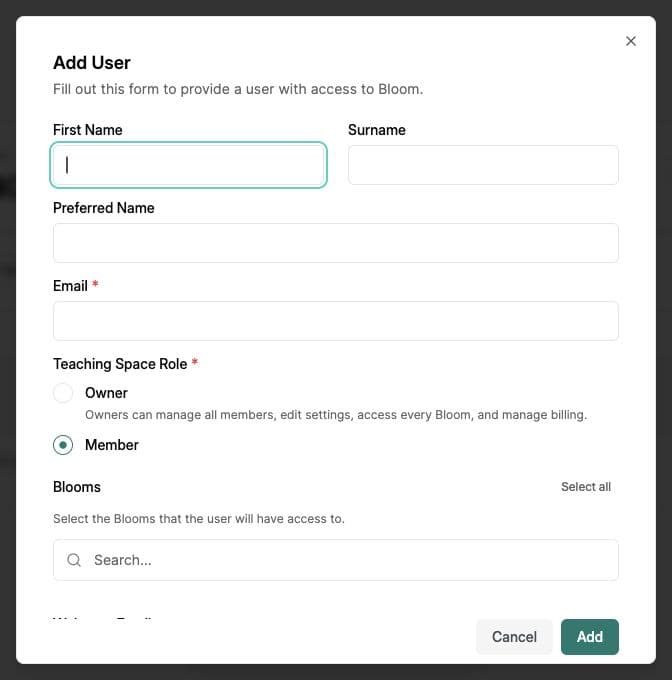
Click Add user in the top right. A dialog opens titled Add User with the description “Fill out this form to provide a user with access to Bloom.”
- Enter First Name, Surname, and (optionally) Preferred Name. Only Email is required.
- Pick a Teaching Space Role: Owner or Member. The form describes the Owner role inline: “Owners can manage all members, edit settings, access every Bloom, and manage billing.”
- If you picked Member, choose which Blooms to enrol the user in and what role they have inside each one (student, educator, or manager). Use Select all to add them to every Bloom in the space.
- Tick “Send a welcome email with login instructions” if you want Bloom to email them a sign-in link straight away. You can leave it unticked and send the invite later from the actions menu.
- Click Add. The new user appears at the top of the table.
Roles, seats, and what each one can do
Bloom has two layers of role. The space role controls the workspace; the Bloom role controls each individual AI tutor.
- Owner (space role): manages users, billing, settings, and has full access to every Bloom in the space. Always counts as a staff seat.
- Member (space role): the default. They can only do what their Bloom roles allow.
- Manager (Bloom role): full control of one Bloom, including its users. Counts as a staff seat.
- Educator (Bloom role): configure the Bloom, upload materials, view analytics, create quizzes. Counts as a staff seat.
- Student (Bloom role): chat, take quizzes, use the canvas. Counts as a student seat.
Edit, archive, or remove a user
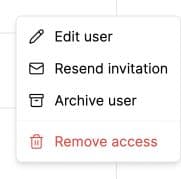
Click the three-dot menu at the right of any row to open a list of actions:
- Edit user: change name fields, swap roles per Bloom, or add them to more Blooms.
- Send invitation or Resend invitation: email the user a fresh sign-in link. The status badge in the Name column updates to Invite sent.
- Archive user: opens a confirmation reading “They will no longer have access to this Teaching Space, but their data will be preserved.” Their seat is freed immediately.
- Restore user (only on archived rows): reverses the archive and consumes a seat again.
- Remove access: a destructive action. The dialog reads “They will no longer have access to all Blooms in this teaching space.”
Bulk actions and pending invites
Tick the checkbox at the start of any row to select it. A floating bar appears at the bottom of the screen reading “{N} selected” with icon buttons for Send Invitation, Archive Users, and Remove Access. On the Archived view, the bar shows Restore Users and Remove Access instead.
Each bulk action opens a confirmation. Bulk archive, for example, says “Are you sure you want to archive {N} users? They will no longer have access to this Teaching Space, but their data will be preserved.” Click Archive Users to confirm.
Pending invites are easy to spot: rows with a yellow Invite sent badge or a grey Invite not sent badge in the Name column. Filter by status, select all, and use the bulk Send Invitation action to chase them in one go.
Common issues
The Add user button is disabled
Hover over it to read the tooltip. “Loading...” means the table is still fetching. “User limit reached for this teaching space” means you have hit your staff or student cap. Either upgrade the plan or archive someone to free a seat.
Seat counts look wrong after lots of changes
Refresh the page and check that you are viewing the correct Teaching Space. Archived users do not use seats, and a person in several Blooms uses only one seat in the space. If the totals still look wrong, contact hi@bloom.study with the space name.
Cannot find a user in the table
Check that you are on the correct view. Archived users do not show on Active Users and vice versa. Clear filters with Clear filters, then search by email. Names can be missing for users who joined via a class code without filling out a profile.
Welcome email checkbox is greyed out
Bloom only sends a welcome email when the user has somewhere to go. If you set the role to Member and have not selected any Blooms, the form shows “Select at least one Bloom to enable sending a welcome email.” Add a Bloom or change the role to Owner.
What’s next
- Understand the workspace this all sits in → How Teaching Spaces work
- Bring a whole class on board with a class code → Invite students to your Bloom
- Open your space now → app.bloom.study