
A teaching space is the top-level workspace in Bloom. It groups Blooms (your AI tutors), the users who can access them, and the plan that pays for everything into a single container. A university department, a faculty, a school, or a single educator’s personal workspace each typically map to one teaching space. If you signed up as an educator, Bloom created your first teaching space automatically during onboarding.
Every Bloom belongs to exactly one teaching space, and every user’s seat is counted against that space’s plan. Spaces are isolated: users, Blooms, billing, and analytics in one space do not leak into another.
What a teaching space contains
One teaching space holds:
- Blooms, the individual AI tutors scoped to a course, subject, or unit.
- Users, classified as staff (educators, managers, and space owners) or learners (students). Each category has its own seat limit on Growth plans.
- A plan and billing record: Free, Educator Plus, Growth 30/100/250/500, or Enterprise. The plan sets the bloom, staff, and student seat limits.
- Space-wide settings like the space name, URL handle, custom icon, AI-improvement data toggle, under-13 attestation, and Lab features.
- Analytics scoped to that space, so engagement, topics, and learning data only reflect activity from Blooms inside it.
Space Owner vs Space Member
Bloom has two space-level roles, separate from a user’s role inside a particular Bloom:
- Space Member is the default for everyone who joins. Members can use the Blooms they are enrolled in, but they cannot edit space-wide settings, billing, or other users’ roles.
- Space Owner is the administrator. Owners can create and archive Blooms, manage billing, edit roles, invite and remove users, view all Blooms in the space, configure space settings, and manage all quizzes.
A user can be a Space Member in one space and a Space Owner in another. Their Bloom-level role (student, educator, manager) sits inside this and controls what they can do within a single Bloom. See How to manage users and roles for a full breakdown.
Step 1: Get a teaching space
Educator onboarding creates your first teaching space. To join an existing institutional space, ask its Space Owner to invite you.
Creating additional teaching spaces from the sidebar is not currently available to customer accounts. Contact hi@bloom.study if you need another space.
Step 2: Configure space settings
As a Space Owner, open Settings from the space dropdown to manage everything that lives at the space level. The page is titled “General Settings” with the description “Manage your teaching space settings and preferences.”
Settings include:
- Teaching Space Name: 3 to 50 characters, the display name shown in the sidebar.
- Teaching Space Handle: lowercase letters, numbers, and hyphens only (for example
my-space). It appears in URLs as/spaces/your-handle/.... - Icon: an optional custom icon shown in the space switcher.
- This Teaching Space may include students under 13: a safeguarding toggle. When ON, conversations from this space are never used to train or improve AI models, regardless of the next setting.
- Help Improve Bloom: opt in to allow de-identified conversation data to be used to improve Bloom’s models. Unavailable when the under-13 setting is on.
- Labs: experimental features available to your space. The options shown depend on your access and plan.
Step 3: Switch between spaces
If you belong to more than one space, click the space name at the bottom of the sidebar and pick Switch Teaching Space. After switching, Bloom shows a confirmation: “You’ve switched teaching spaces. Billing, users and settings match this space. Bloom configurations and existing chats are unchanged.”
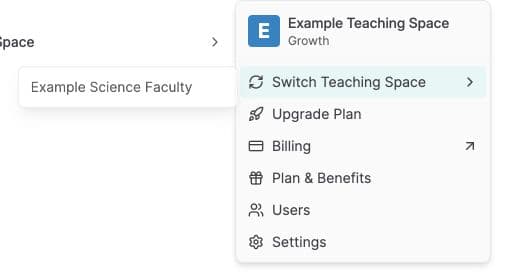
Your dashboard, Manage Blooms list, analytics, and the active plan all update to the new space. Conversations you started elsewhere stay where they are: switching does not move data.
Deleting and restoring a space
Only Space Owners can delete a space, from the Danger Zone at the bottom of General Settings. Bloom requires you to type the exact space name, then hides the space: billing is paused, and a 30-day grace period begins. During those 30 days you can restore the space and everything inside it, Blooms, documents, conversations, and enrolments, in one click.
After 30 days, deletion becomes permanent. To remove data sooner than that, contact hi@bloom.study.
Common issues
I cannot see Settings or Users in the sidebar
Those entries are only visible to Space Owners. Ask an existing owner to promote you, or ask them to make the change for you.
“Teaching space handle” validation error on save
The handle must be lowercase letters, numbers, and hyphens only, with no spaces or special characters. science-2026 works; Science 2026 does not.
The Labs toggles are greyed out
Check the message beside the setting. Some preview features need an eligible plan or help from the Bloom team to enable. Contact hi@bloom.study to confirm availability for your Teaching Space.
I deleted a space by accident
Open the space from the sidebar within 30 days of deletion. The General Settings page will show a Restore Space button instead of Delete Teaching Space. Click it and the space comes back exactly as it was.
What’s next
- Invite your team and assign the right roles → How to manage users and roles
- Connect Bloom to your LMS so students join with one click → How to set up LMS integration
- Browse all teaching space guides → Teaching Spaces & Users