
Your Bloom is a subject-specific AI tutor, not an open chatbot. You control what it answers in four ways: the documents in the Knowledge Base, the wording in Context and Instructions, a list of Blocked Content for assessment questions, and the Stay On Topic setting. Used together, these keep students focused on your subject and protect graded work from being looked up through the tutor.
How topic controls work
Bloom combines your course materials, your written instructions, and the moderation settings you turn on in configuration. It then decides whether to answer normally, guide the student back to the subject, or decline to help with a likely assessment-answer request.
- Course materials tell Bloom what your subject covers and give it source material to cite.
- Context and Instructions set plain-language rules, such as which weeks, units, or assignment boundaries apply.
- Blocked Content protects specific graded questions by telling Bloom to help with underlying concepts rather than the exact answer.
- Stay On Topic makes Bloom more likely to redirect unrelated questions back to the subject material.
Step 1: Scope with the Knowledge Base
The single biggest control on what Bloom can discuss is what you upload. Open your Bloom, go to the Knowledge Base tab, and add only the documents you want students to be able to ask about. If a topic is not represented in the materials, Bloom will fall back to general subject knowledge for that area, which is shallower and more easily redirected.
Step 2: Narrow with Context and Instructions
Open the Initial Setup tab and scroll to the Context and Instructions field. Bloom applies this text to each conversation, so it is the right place to state scope rules in plain language. Examples:
- “Only discuss content from weeks 1 to 5 of MATH1120. If a student asks about later weeks, tell them the topic is not yet covered.”
- “Do not provide direct answers for Assignment 3. Instead, help students plan their approach and check their reasoning.”
- “This Bloom is for Year 11 Biology. Politely decline questions about other subjects.”
Up to 100,000 characters are allowed, but most Blooms work best with 200 to 800 words here. Keep the rules short and unambiguous, the model follows specific instructions more reliably than vague ones.
Step 3: Block specific assessment questions
For exact assessment questions you never want answered, use the Blocked Content section in the Content Moderation tab. The in-product description reads: “Add questions or assignment content that students should not receive direct answers to. When a student asks something similar to blocked content, the tutor will recognise the match and politely redirect them to explore the underlying concepts instead.”
To add an entry:
- Click Add Blocked Content. A dialog opens.
- Optionally give it a title, for example Midterm Exam or Assignment 3. The placeholder text in the field is “Title (optional), e.g. Midterm Exam, Assignment 3.”
- Paste a single question, a set of questions, or an entire assignment into the content field.
- Click Add. The entry appears in the list with a count badge next to the section header.
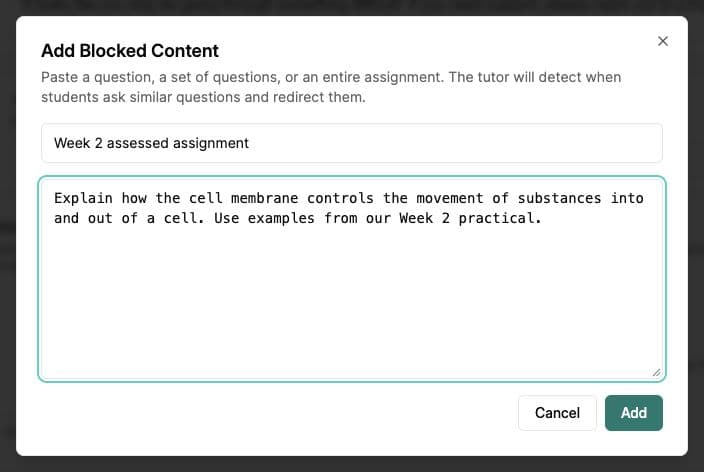
Bloom looks for questions with a similar meaning, even when students use different words. When a match is detected, the tutor responds along the lines of: it cannot help with this specific question because it appears to be an assessment question, but it can help with the underlying concepts.
Step 4: Turn on Stay On Topic
At the bottom of the Content Moderation tab is a switch labelled Stay On Topic. Its description reads: “The tutor will more strongly recognise if students go off-topic and politely redirect them back to the subject material. This helps keep conversations focused on learning.”

Turn this on for tutors used in class or during revision, where you want students to stay focused on the subject. Leave it off for general-purpose Blooms where casual conversation is fine. With the switch on, questions about unrelated subjects, current events, or chit-chat will trigger a polite redirect rather than an answer.
Common issues
Bloom answers a question I expected it to refuse
Two likely causes. First, the question is close to your subject but not on your Blocked Content list. Add an explicit instruction in Context and Instructions, or add the specific question to Blocked Content. Second, the question is loosely related to material in your Knowledge Base. Remove the document if you do not want students drawing on it.
Bloom refuses a legitimate question
Usually caused by Blocked Content being too broad (a whole textbook chapter pasted in) or by Context and Instructions including an overly strict rule. Tighten the blocked entries to the specific questions, and re-read your instructions for absolute words like never or any.
The Stay On Topic switch is greyed out
Ask your Bloom Manager or Space Owner to check the setting. An educator role alone does not allow configuring a Bloom. Controls are also disabled while saving or when a Bloom is deleted.
What’s next
- Shape how Bloom communicates with students → Set up a teaching persona
- Ground answers in your syllabus → Upload course materials
- Open Bloom and update your Content Moderation settings → Manage Blooms