
Analytics is where you go to answer three questions: are my students using Bloom, what are they actually asking, and where are they getting stuck. The dashboard pulls live data from every conversation in the Blooms you have access to, and lets you slice it by Bloom, by role, and by date range. This guide walks through reading each tab as an educator or manager.
Before you start
You need:
- A Bloom account with an Educator or Manager role on a Bloom, or the Space Owner role on the Teaching Space. Students do not see the Analytics tab.
- At least one Bloom you are enrolled in as educator or manager, whose usage you want to review. If a view shows a sample-data notice, the example charts do not represent your students.
- For Topic Insights specifically, a minimum of five questions in the selected range. Below that threshold the AI clustering will not run.
Step 1: Open the Analytics page
Sign in at app.bloom.study and click Analytics in the left sidebar. The page header reads “Analytics” with the subtitle “See insights on student usage.”
If you do not see Analytics in the sidebar, you do not have a role that allows viewing analytics on any of your Blooms. Ask your Space Owner to grant you the educator or manager role.
Step 2: Set your filters
Start with the Bloom, role, and date filters to choose the activity you want to review. Check the dates shown on any saved reports, which may cover a different period.
- Blooms: pick one or more from the multi-select. The placeholder reads “Search Blooms...”. Select one Bloom for Mastery or AI Literacy details, when those features are available in your Teaching Space.
- Roles: defaults to Student. You can also include Educator, Manager, or Guest activity. Most educators leave this on Student to see the learner picture only.
- Date range: pick custom dates or use a preset from the dropdown labelled “Select preset...”. Date range also controls the time-series granularity (hourly is only available for one-day ranges; weekly needs at least seven days).
Check the reporting timezone
Read the Times shown in note below the filters. Reports for a Teaching Space use its saved timezone, or your device timezone until a Space Owner saves a shared setting. Reports across Teaching Spaces use your device timezone. Check this before comparing dates or exports with a colleague. Space Owners can follow Timezone settings to change the shared setting.
Step 3: Read the Overview tab
The Overview tab opens by default. Read the stat cards left to right:
- Enrolled users: current enrolment in the selected Blooms. This is not a historical count of enrolment during your selected dates.
- Active users: how many of those sent at least one message in the date range.
- Participation rate: active divided by current enrolled users, expressed as a percentage. This is shown for roles with enrolment counts.
- Messages and Messages per active user: raw volume and per-head depth.
- Total session time, hours: an estimate of time spent actively chatting.
- Conversations, Conversations per user, and Avg. conversation depth: how often students return and how far each thread runs.
Use Activity over time to see how message volume changes. The available time intervals depend on your date range. When students study shows activity by day and time; its title changes when you include other roles. Read the timezone shown with the chart.
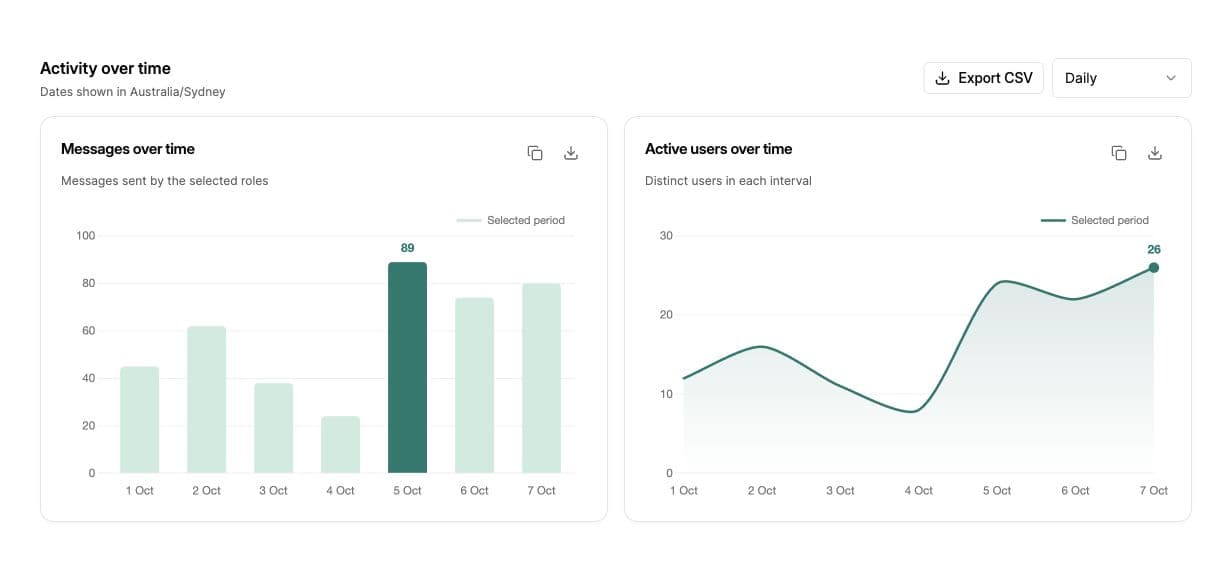
If your space has Learning Analytics enabled, an extra Learning highlight strip appears below the chart with cards for Learning-related, Active misconceptions, High-quality thinking, Guided discovery, and Knowledge base use. Each card is clickable and jumps you straight to the matching sub-tab on the Learning page.
Step 4: Use Topics and Mastery
Topics answers what are they actually asking. Bloom clusters the student questions in your filter window into named topics, with a short description, the key struggles, and a handful of representative questions. If a topic shows up at the top of the list every week, it is a strong signal to revisit it in class or sharpen the relevant section of your knowledge base.
Mastery answers where are they getting stuck, but only when you have a single Bloom selected and Learning Components enabled on its Teaching Space. The Mastery tab shows a Top struggling components card, an all-components table, and per-student breakdowns so you can see which concepts a specific learner has not yet picked up.
Users gives you a per-student row view: messages, sessions, last active, and a CSV export for grade-book or LMS integration.
AI Literacy, when available
Select a single Bloom and open AI Literacy to review feedback on how students prompt and engage with Bloom. Read the examples and suggested next steps with the scores. These reports describe interactions with AI, not a grade for subject knowledge. Check the saved report’s date range and timezone when comparing reports.
Learning, Mastery, and AI Literacy availability depends on your Teaching Space. If you need a feature that is missing, contact the Bloom team to discuss availability.
Step 5: Export and act on the data
On the Users tab, click the export button to download a CSV of every student in your current filter set. The export always includes all columns, regardless of which columns are toggled visible in the table. Use this for parent-teacher meetings, progress reports, or as evidence of engagement during accreditation reviews.
Charts with Copy image and Download image controls can be used in a report or presentation. If copying is not supported by your browser, download the image instead. Set your filters first and check for a sample-data notice before sharing.
Common issues
The Analytics tab is not in my sidebar
Your role does not allow viewing analytics on any Bloom or Teaching Space. Educators, managers, and Space Owners can view analytics. Ask your Space Owner to update your role.
Charts show zero with the message “No data”
Either the date range has no activity, or your filters exclude all roles. Check that Student is selected, expand the date range, and confirm the Bloom you picked actually has conversations.
Topics tab is empty even though there is activity
Topic Insights needs at least five student questions in the filter window before it will cluster. If you have fewer, expand the date range or pick a Bloom with more traffic.
Mastery tab is missing
Select a single Bloom first. Mastery also needs to be available in that Bloom’s Teaching Space. If it is still missing, ask your Space Owner to contact hi@bloom.study about availability.
What’s next
- Sanity-check your Bloom by chatting as a learner → How to use Student Mode
- Turn topic spikes into formative checks → How to create quizzes as an educator
- Open Analytics now → Go to Analytics