
Student Mode lets you, the educator, view and chat with your Bloom exactly as a student would. Educator-only buttons disappear, the welcome message switches to the student-facing copy, and the AI uses the teaching settings configured for students. It is the fastest way to catch problems (a confusing example question, a missing document, a welcome message that does not render properly) before any student sees them.
Student Mode is a local, view-only switch. It does not change your role on the bloom, it does not move your enrolment, and it does not affect what students see on their end. Toggling it only changes what you see in your own browser session.
Why Student Mode exists
Educators and students see two different interfaces in Bloom. Educators get configuration tabs, the Invite students button, the analytics panel beside each conversation, and a teaching assistant for preparing materials. Students see the learning interfaces available to them, with support shaped by the Bloom’s teaching settings.
You should preview your Bloom in Student Mode after every meaningful change:
- After uploading new course materials, to confirm the AI cites them.
- After editing the welcome message or example questions.
- After changing the pedagogy, persona, or language settings.
- Before sharing the bloom with a class for the first time.
Step 1: Turn on Student Mode
You can enable Student Mode in two places, both inside any bloom you own or co-teach.
Option A: The header button (desktop)
In the top right of the chat interface, click the View as Student button (graduation cap icon). Hover before clicking and you will see the tooltip: “You are in Educator Mode. Switch to preview the student learning experience.” One click flips you across.
Option B: The Bloom actions menu
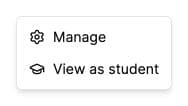
On a narrow screen, open the Bloom actions menu in the header and choose View as student.
Step 2: Notice what changes
The moment Student Mode flips on, four things happen:
- A persistent banner appears across the top of the page reading Student View, with an Exit button beside it.
- The chat resets its first message to the welcome message students see (the one you wrote in Initial Setup), with template variables resolved.
- Educator-only controls hide: the Invite students button, the conversation analysis panel, and the educator response actions are all removed from view.
- The AI uses the teaching settings configured for students, including the limits you have chosen for writing, solution steps, answers and code assistance.
Step 3: Run a quick test
A two-minute pass that catches most setup problems:
- Read the welcome message. Does it greet the student by first name correctly? Are template variables like
{firstName}resolving? - Click an example question. Does the AI respond using your uploaded materials? If answers feel generic, your knowledge base might not be ingested yet.
- Ask a real assessable question. The AI should refuse to answer assessment questions outright and steer the student toward reasoning instead.
- Open a document from the documents tab. Confirm the viewer loads and the file title is correct.
- Try a canvas paragraph. Paste a short essay and ask for feedback to verify the writing feedback flow works.
Step 4: Exit back to educator view
You have two ways to exit:
- Click Exit on the right side of the Student Mode banner.
- Use the Exit button in the Student View banner.
The banner disappears, your educator controls return, and the welcome message reverts to its educator version. The bloom remembers your choice for next time.
Common issues
I don’t see the View as Student button
The button only appears for accounts that can chat as an educator on this bloom (educator, manager, or space owner roles). If you are enrolled as a student, you are already seeing the student view. The button is also hidden on small screens, use the Bloom actions menu instead.
The AI still sounds like the educator persona
Refresh the page after toggling. If you have a partly streamed reply on screen, finish or cancel it first: the streaming response uses whichever mode was active when you sent the message.
The welcome message did not change
Bloom replaces the first message when you toggle Student Mode, but only if you have not already replied. If your conversation already has back-and-forth, start a new conversation to see the student welcome message from scratch.
I can still see the analytics panel beside conversations
The panel hides only when Student Mode is active. If it is still showing, double-check the banner is visible at the top of the screen. If the banner is missing, use View as student from the Bloom actions menu.
What’s next
- Once your Bloom passes the Student Mode check, share it with students → Invite students to your Bloom
- Watch what students actually ask → Use the analytics dashboard
- Open Bloom and run the check now → app.bloom.study