
To take a quiz, open your Bloom, switch to the Quizzes view, click a quiz from the list, and click Start Quiz (or Resume Quiz if you already started). You answer one question at a time, click Submit, and Bloom replies in the chat with feedback. Your progress is saved automatically after every submission, so you can close the tab and come back later.
Quizzes in Bloom are not pass-or-fail tests. They are a structured way to practise: you submit an answer, the AI tutor explains the reasoning, and you decide whether to keep going or revisit a concept.
Before you start
You need:
- A Bloom account, sign in at app.bloom.study.
- Access to the Bloom your teacher published the quiz in. If you cannot see the Bloom in your sidebar, ask your teacher or admin to enrol you.
- A quiz that has been published by your teacher. Drafts are not visible to students. If your Quizzes panel says “Your teacher or admin hasn’t published any quizzes,” there is nothing to take yet.
Step 1: Open the quiz list
Open your Bloom and switch to the Quizzes tab. You will see every published quiz for that Bloom, with a status badge next to each one:
- Not started: you have not opened it yet.
- In progress: you have answered some, but not all, questions.
- Completed: you have finished at least one attempt.
- Retrying: you started a fresh attempt on a quiz you had already finished.
Quizzes with a due date show Due: [date]. If a deadline is within seven days you will see a Due soon badge, and once it has passed you will see Overdue in red. Bloom does not lock overdue quizzes, you can still attempt them, but your teacher will see the completion timestamp.
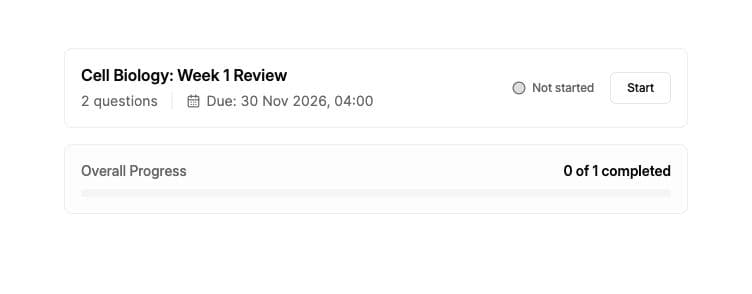
Step 2: Pick a quiz and start
Click a quiz to open the detail screen. You will see the title, description, question count, due date, and a button on the right:
- Start Quiz if you have not begun.
- Resume Quiz if you left part-way through (Bloom will drop you on the first unanswered question).
- Retry on the list itself if you have already completed the quiz and want a fresh attempt.
Click the button. The first question loads, and the question counter at the top shows your position, for example Question 2 of 10.
Step 3: Answer each question
Your quiz may include these question types:
- Multiple choice: click the option you think is correct (A, B, C, ...). Click again to deselect.
- Multiple select: select every option you think is correct. You can choose more than one.
- True / False: pick True or False.
- Short answer: type your answer in the textbox.
Some questions also ask you to justify your choice with the prompt “Can you explain the reasoning behind this answer?” Type a sentence or two in the explanation box. The AI will use this to give you better feedback, even when your final answer is correct.
When you are ready, click Submit. The button is disabled until you have picked an option, entered text, or filled in the required explanation, so if it looks greyed out, check that you have done both parts.
Step 4: Read the AI feedback
After you submit, Bloom saves your answer and marks it:
- Shows the result in the quiz panel. If a short answer is still being marked automatically, wait for the result to appear.
- Sends a message into the chat panel where the AI tutor reacts to your specific answer. If you got it right, expect something brief and warm (“Exactly right!”) followed by a quick explanation of why your reasoning works. If you got it wrong, the AI uses growth-oriented language (“Not quite yet”), points at the misconception, and asks a guiding question rather than handing you the answer.
You can chat back and forth with the AI about that question, ask for a hint, ask for a different explanation, or share more of your thinking. When you are ready, click Next question on the quiz panel to move on. Use Previous to go back and re-read an earlier question, your already-submitted answers stay locked.
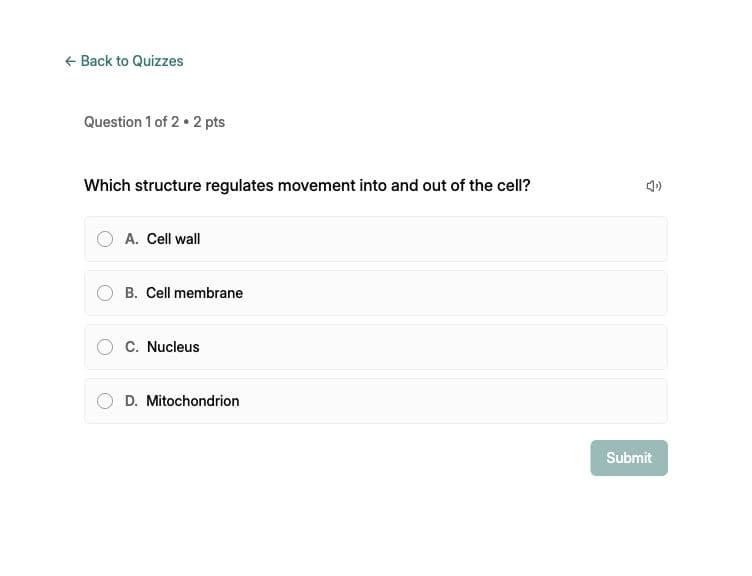
Step 5: Finish and review
After you submit the last question, the Finish Quiz button appears. Click it to see the completion screen with:
- Your overall score as a percentage and points (for example, 14 / 18 points).
- How many you got right out of how many were graded.
- Whether any answers are still being marked automatically. Your final score appears when marking finishes.
Retry Quiz and Get AI Feedback are unavailable while marking is pending. Once it finishes, you can:
- Review Answers, walk back through every question and your AI feedback.
- Retry Quiz, start a brand-new attempt with empty answers (your previous attempt stays in your history).
- Get AI Feedback, the AI summarises your full attempt in chat, focusing on the questions you missed and the misconceptions it spotted.
- Done, return to the quiz list.
Common issues
The Submit button is greyed out
You either have not selected an answer yet, or the question requires an explanation and the textbox is empty. Pick an option (or type your short answer) and fill in the explanation if it is shown.
“Failed to save answer” toast
Bloom could not confirm that your answer was saved. Keep a copy of any written response, check your connection, and try again. If the error persists, reopen the quiz and check your saved progress before continuing. Tell your educator if an answer is missing.
“Validation error”
Usually means a short-answer field is blank, or a multiple-choice question has no option selected. Pick or type an answer and submit again.
I closed the tab, did I lose my progress?
No. Your successfully submitted answers are saved automatically. Reopen the Bloom, go to the Quizzes tab, and click Resume Quiz, you will land on the first question you have not answered.
My answer is saved, but marking is taking longer than usual
Bloom retries delayed marking automatically. You do not need to submit the same answer again. Return to the quiz to check the result; your final score and retry options become available when marking finishes.
The chat feedback did not arrive
If Bloom shows Retry feedback, use that button. Your saved answer and its marking result are separate from the tutor’s explanation in chat.
My short answer was marked wrong but it looks right
With AI marking, Bloom assesses your answer against the educator’s expected answer and marking rules, allowing minor typos and equivalent wording. With Exact matching, the answer must match one of the accepted versions, apart from capitalisation and extra spaces. Ask your educator to review a result you think is wrong. Asking for a different explanation in chat does not change your saved score.
What’s next
- Get more out of the AI feedback by asking better follow-up questions → How to ask effective questions
- Explore different forms of learning support → How Bloom supports learning
- Open Bloom and try a quiz now → app.bloom.study