
To create a quiz, sign in at app.bloom.study, click Manage Quizzes in the left sidebar, and click Create New Quiz. You will land on the quiz builder, where you give the quiz a title, pick the Bloom it belongs to, set an optional due date, and add questions one at a time. When you are ready, click Publish to make it visible to students, or Save Draft to keep working on it.
A quiz in Bloom is scoped to a single Bloom (one AI tutor, typically one subject or unit). Students enrolled in that Bloom see the quiz in their interface once it is published, and their results feed into your Results and Grades tabs.
Before you start
You need:
- A Bloom account with a role that allows managing quizzes. This means either the Space Owner role on your teaching space, or a Bloom-level role of manager on at least one Bloom. An educator role alone does not grant quiz-management access.
- At least one Bloom in your teaching space to attach the quiz to. If you do not have one yet, create one first by following How to create your first Bloom.
- Optional but recommended: course materials uploaded to that Bloom’s knowledge base, so you can draft questions from real content.
Step 1: Open Manage Quizzes
After signing in, click Manage Quizzes in the left sidebar. You will see a list of any existing quizzes for your teaching space, with status badges showing whether each one is Draft, Published, Archived, or Disabled.
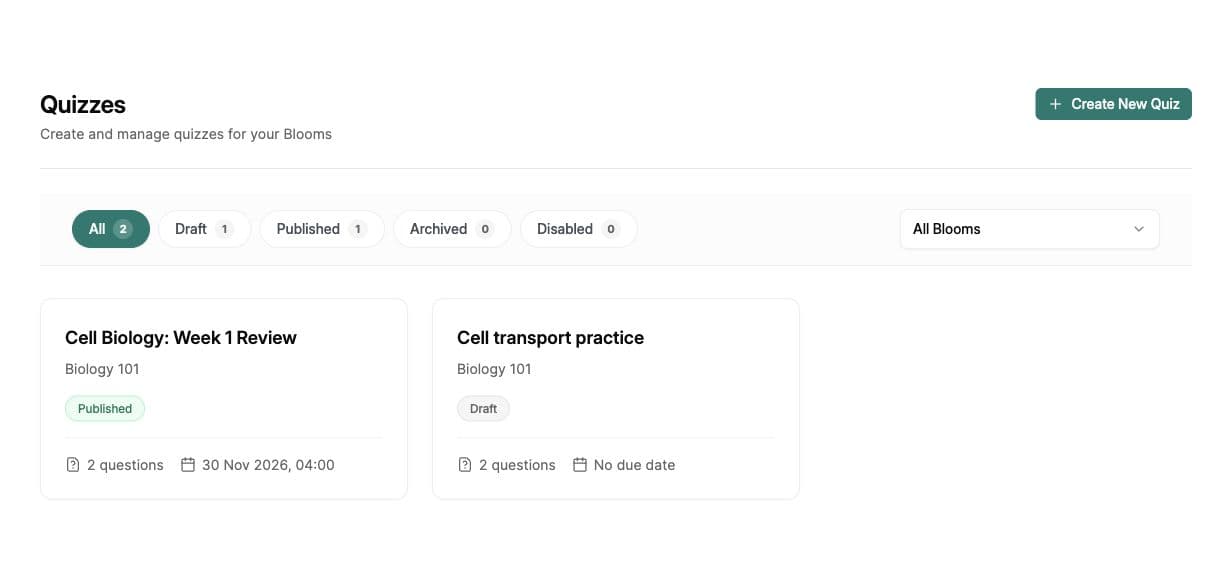
Step 2: Create a new quiz
Click Create New Quiz in the top right. This opens the quiz builder on the Builder tab, with empty fields for the title, description, Bloom, and due date.
If you are editing an existing quiz, click any quiz card from the list instead. The builder also has Results and Grades tabs once a quiz has student attempts.
Step 3: Add title, Bloom, and due date
Fill in the top of the builder:
Title
Click the large heading field that says “Untitled Quiz” and type a name students will recognise, for example, “Week 4 Quiz: Photosynthesis”. The title is required before you can save.
Description (optional)
The line below the title (“Add a short description for this quiz”) is for a brief summary or instructions, for example, “Covers chapters 3 and 4. Open notes.”
Bloom
Pick the Bloom from the Bloom dropdown. Only Blooms you can manage as a Bloom Manager or Space Owner appear here. The dropdown placeholder reads “Select subject for this quiz”. This field is required.
Due date (optional)
Use the Due date and time picker to set a deadline. Past dates are not selectable. Leave it blank for an open-ended quiz with no deadline.

Step 4: Add questions
Scroll down to the Questions section and click the + (Add question) button. For each question, choose a type, write the prompt, and fill in the answer details.
Question types
Choose from four question types:
- Multiple Choice: Two or more options, with exactly one marked correct. Useful for fast recall and concept-check questions.
- Multiple Select: Students can select more than one option. Mark every correct option when building the question.
- Short Answer: Students write a response. Provide an expected answer and choose AI marking or Exact matching.
- True / False: A single statement that students mark as either true or false.
Short-answer marking
Under Expected answer, choose a Marking method:
- AI marking: assesses the response against your expected answer and accepts minor typos and equivalent wording. Add optional Marking rules to explain what must be included or what should not receive credit.
- Exact matching: matches an accepted answer while ignoring capitalisation and extra spaces. Add the answer variants you want to accept.
Write clear expected answers and check the student experience before using the quiz with your class.
Question fields
Depending on the question type, you can set:
- Question text (required): The prompt students see. Supports rich text and LaTeX equations via the Insert equation (sigma) button in the floating action menu.
- Description (optional): Extra context shown below the prompt.
- Image (optional): Upload a diagram or figure with the question, or per option for multiple choice.
- Points: Defaults to 1. Must be zero or greater. Used to weight the question in the final grade.
- Requires explanation: When ticked, students must justify their answer in addition to selecting it. Useful for promoting reasoning over guessing on multiple choice.

Drag the grip handle on any question card to reorder questions. Use the + button to insert a new question above or below, and the trash icon to delete one.
Generate questions with AI
- Select a Bloom in the builder, then choose Generate.
- Describe the topic and what you want students to practise.
- Choose one or more question types, the number of questions, difficulty, and points.
- Under Source Documents, select relevant Knowledge Base files. You can also add URLs or upload additional files for this generation.
- Select Generate. When the questions appear in your quiz, review their wording, correct answers, and marking settings.
Use Add feedback where shown to include optional answer feedback. If taxonomy tags are available, check that they match your intended learning goals. Check and mark AI-generated questions as reviewed before publishing; Bloom warns you if any remain unreviewed.
Step 5: Review and publish
In the top right, you have two main actions while the quiz is new:
- Save Draft: Saves your progress without making the quiz visible to students. You can come back any time. Drafts can be saved with no questions yet.
- Publish: Makes the quiz available to students enrolled in that Bloom. Requires at least one non-draft question. You will see a green toast “Quiz published” on success.
Once published, the buttons change to Save Changes, with extra options under the more menu (three dots): Archive, Disable, or Unpublish (Revert to Draft).

Common issues
“Title required” toast on save
The toast reads “Please add a title for your quiz.” Add a quiz title at the top of the builder and try again.
“Select a subject” toast on save
The toast reads “Choose a subject before saving this quiz.” Pick a Bloom from the Bloom dropdown. If the dropdown is empty, check that you are a Bloom Manager or Space Owner in this teaching space.
“Add questions first” toast when publishing
You cannot publish a quiz with zero saved questions. The toast reads “Include at least one question before publishing the quiz.” Add and save at least one question, then click Publish again.
Validation errors on a question
Common per-question validation messages:
- “Question text is required.”
- “Multiple choice questions need at least two options.”
- Choose exactly one correct option for Multiple Choice, or mark the correct options for Multiple Select.
- “At least one expected answer is required.” (short answer)
- “Choose whether the statement is true or false.”
Open the question card, fix the highlighted field, and the Save Draft and Publish buttons will re-enable.
Manage Quizzes is not in my sidebar
You do not have the right role. Ask your Space Owner to make you a manager on the Bloom, or to promote you to a Space Owner.
What’s next
- See what students experience when they take it → How students take a quiz in Bloom
- Ground questions in real course content → Upload course materials
- Open Bloom and start building → Manage Quizzes