
Open Library in your Bloom’s Workspace to read course documents and watch videos alongside chat. Follow a source citation to the relevant page or video timestamp, then ask Bloom about what you are studying. Available materials depend on the access your educator provides.
Before you start
You need:
- A Bloom that has at least one file ingested. See How to upload course materials.
- Access to that material. Students can open files set to View Only or Full Access. Files marked Hidden from Students or Reference Only never open in the student-facing viewer.
- The Library workspace tab enabled on the Bloom. Some Blooms turn it off in configuration, in which case you will not see the tab at all.
Step 1: Open Library
Open the Workspace beside your conversation and choose Library. On a smaller screen, switch from chat to the Workspace view first.
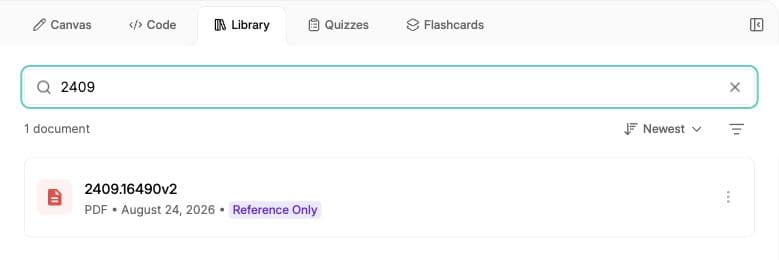
If the workspace pane is collapsed, use the Workspace control to open it. You can resize the pane to give the material more room.
Step 2: Pick a file
Choose a document or video from the list. It opens in place of the list. Above the page you will see the filename. Use the back arrow at the top left of the viewer to return to the list.
Files with the .url extension are not rendered in the viewer. Clicking one opens the URL in a new tab instead, since they point to external pages rather than uploaded content.
Step 3: Jump from a citation
When the AI grounds an answer in your knowledge base, the response shows a Sources section beneath it. Each citation lists the source filename and the pages used, for example: Week 1 Lecture Notes.pdf (Pages: 3, 7).
Click the underlined source name. Bloom does three things at once:
- opens the workspace pane if it is collapsed,
- switches the workspace to the Library tab,
- opens that file and jumps to the first cited page.
Step 4: Navigate the viewer
For PDFs, the embedded viewer gives you navigation controls along the top:
- Page input: type a page number to jump directly.
- Zoom: zoom in and out, or fit the page to width or full page.
- Find: open the search bar to find text inside the document.
- Download: only enabled for files where the access level is set to Full Access. For converted files (DOCX, PPTX, etc.) this downloads the original, not the converted PDF.
Bloom saves the page you were last on for each file, scoped to the current conversation. When you reopen the viewer in that conversation, it restores the saved page automatically. Citation jumps always win: if you click a Sources link to page 7, you land on page 7 even if your saved position was page 3.
Watch videos and use transcripts
The Library labels videos as YouTube video or Uploaded video. Open a video and use its playback controls. When a transcript is available, select a timestamped passage to jump to that part of the video. A video citation in chat can also take you to a specific moment.
If no transcript is available, you can still use the video controls. When asking a question, name the video and the time you mean so Bloom has a clear reference.
Step 5: On mobile
On phones and tablets, Bloom shows the chat and the workspace as separate top-level views rather than side by side. Tap Workspace at the top, then select Library, pick a file, and the viewer takes the full screen. Tap Chat to go back to the conversation.
Common issues
The Library tab is missing or empty
Check that you have opened the correct Bloom. Ask your educator whether Library is enabled and whether the course materials have finished processing and are available for students to view.
The viewer shows a grey screen and never loads
Check your connection, return to the document list, and open the file again. If it still will not load, ask your educator to check that the upload has finished processing.
“The download was interrupted due to a network issue.”
Bloom shows this toast when your connection drops mid-download. Reconnect and click Download again. Partial downloads are not resumed, you start from zero.
The download button is greyed out
The educator has set this file’s access level so students cannot download it. Access levels of View Only, Reference Only, and Hidden from Students all disable the download button for students. Only Full Access enables it.
Citation link does nothing when clicked
The cited filename does not match a document in the current Bloom (for example, the file was renamed or deleted after the AI generated the answer). Open the Library tab manually and find the file by name.
What’s next
- Update or replace files in your knowledge base → Manage and update documents
- Add new materials so citations point at fresh content → Upload course materials
- Open Bloom and try the viewer now → Manage Blooms