
Once you have uploaded files, the Knowledge Base tab is where you keep them tidy. You can search, sort, rename, change a file’s access level, replace outdated versions, re-ingest files that processed incompletely, and bulk-delete sources you no longer need. Every change takes effect immediately for new conversations.
Before you start
You need:
- A role that allows configuring the Bloom: Space Owner, Bloom Manager, or Educator. Students cannot edit knowledge-base sources.
- At least one ingested file in the saved-sources list.
- A clear idea of which sources you want students to see. Default access is Hidden from Students, so files stay private until you change that.
Step 1: Find and sort sources
Open your Bloom, click the Knowledge Base tab, and scroll to the saved-sources grid. Above the grid you will see a search box (“Search sources...”) and a sort dropdown.
The sort dropdown offers six options:
- Name (A-Z) and Name (Z-A)
- Newest first and Oldest first (by upload date)
- Access (least first) and Access (most first), ordered Hidden → Reference Only → View Only → Full Access
Each source card shows the filename, the file extension, the upload date, and a coloured access-level pill (amber for hidden, violet for reference, blue for view-only, emerald for full access). If your Bloom has more than 30 sources, use the page controls to browse the list or search by filename.
Step 2: Edit a file or change access
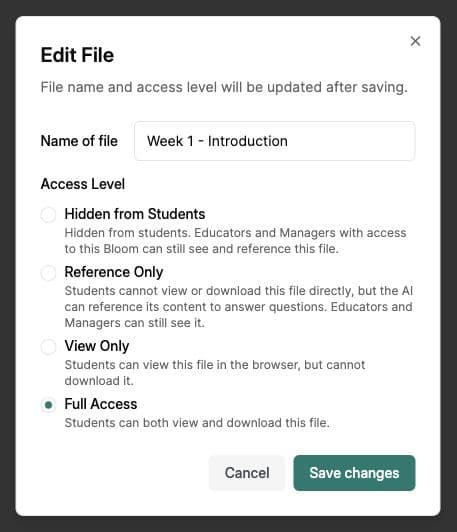
Click the three-dot menu on any source card and choose Edit. The Edit File dialog opens with two fields: Name of file and Access Level.
The four access levels and their effects:
| Level | Description (shown in the dialog) |
|---|---|
| Hidden from Students | Only Managers can see this file. Students and Educators will not see it anywhere. |
| Reference Only | Students and Educators cannot view or download this file directly, but the AI can reference its content to answer questions. |
| View Only | Students and Educators can view this file in the browser, but cannot download it. |
| Full Access | Students and Educators can both view and download this file. |
Step 3: Replace an outdated file
To swap in a new version of a document, upload a file with the same filename. Bloom detects the clash and opens the Overwrite warning so you can confirm. Once processing finishes, Bloom uses the updated content in new answers. There is no need to delete the previous version first.
If you want a clean slate instead, delete the old file from the three-dot menu, then upload the new one under any name.
Step 4: Re-ingest incomplete files
Sometimes a file ingests but only partially indexes (for example, a long PDF where some pages failed to extract). Bloom flags these with an amber warning under the filename:
To fix it, upload the same file again. Bloom recognises it as a duplicate, prompts you to overwrite, and processes the file again.
Step 5: Use bulk actions
Hover any source card to reveal a checkbox in place of the file icon, then tick the files you want to act on. A toolbar appears at the top of the grid showing “{N} selected” with two buttons: Select All and Delete.
Clicking Delete opens a confirmation listing every filename. The dialog warns: “Are you sure you want to delete {N} sources? This action cannot be undone.” Confirm to remove the selected files from the knowledge base.
Common issues
The AI is still quoting a file I deleted
Earlier messages may still contain information from that file. Start a new conversation to check answers against your current materials.
I see “Failed to delete {filename}” in a toast
One or more files could not be removed (for example, if your connection was interrupted). Bloom keeps the failed files in the list so you can retry. Wait a few seconds and try again, or refresh the page first.
“View Only” and “Full Access” options are missing
The file is a URL, DOCX, PPTX, or other non-PDF. Only PDFs render in the in-browser viewer, so other formats are limited to Hidden from Students or Reference Only. To enable view or download, convert the file to PDF and re-upload.
I cannot find a file using search
Search matches the filename, not the file’s contents. Make sure you are searching by the title exactly as it appears in the saved-sources grid. Wait for the results to finish updating after you type.
What’s next
- Add more material to your Bloom → How to upload course materials
- Help students read alongside the AI → How do I use the document viewer?
- Open the Knowledge Base now → Manage Blooms