
All subscription management for a Teaching Space happens in one place: the Teaching Space dropdown at the bottom of the sidebar. From there you can open Plan & Benefits to see usage and limits, click Upgrade Plan to switch tier, or open Billing to launch the Stripe customer portal where payment methods, invoices, and cancellations live. Upgrades take effect immediately with a prorated charge. Downgrades and cancellations take effect at the end of the current billing period, so you keep paid features until that date.
Who can manage billing
Only Space Owners on the Teaching Space can open checkout or the Stripe portal. If you click a billing button and the action is blocked, ask your Space Owner to either run the change for you or promote you to a Space Owner.
You will also need:
- A Teaching Space that is not already on the plan you are trying to switch to.
- For new paid subscriptions, a card that Stripe accepts in your billing country. Bloom prices in the currency Stripe detects from your country code.
- For downgrades, your current usage to be within the new plan’s seat and Bloom limits (see How seats and limits work).
Step 1: Open Plan & Benefits
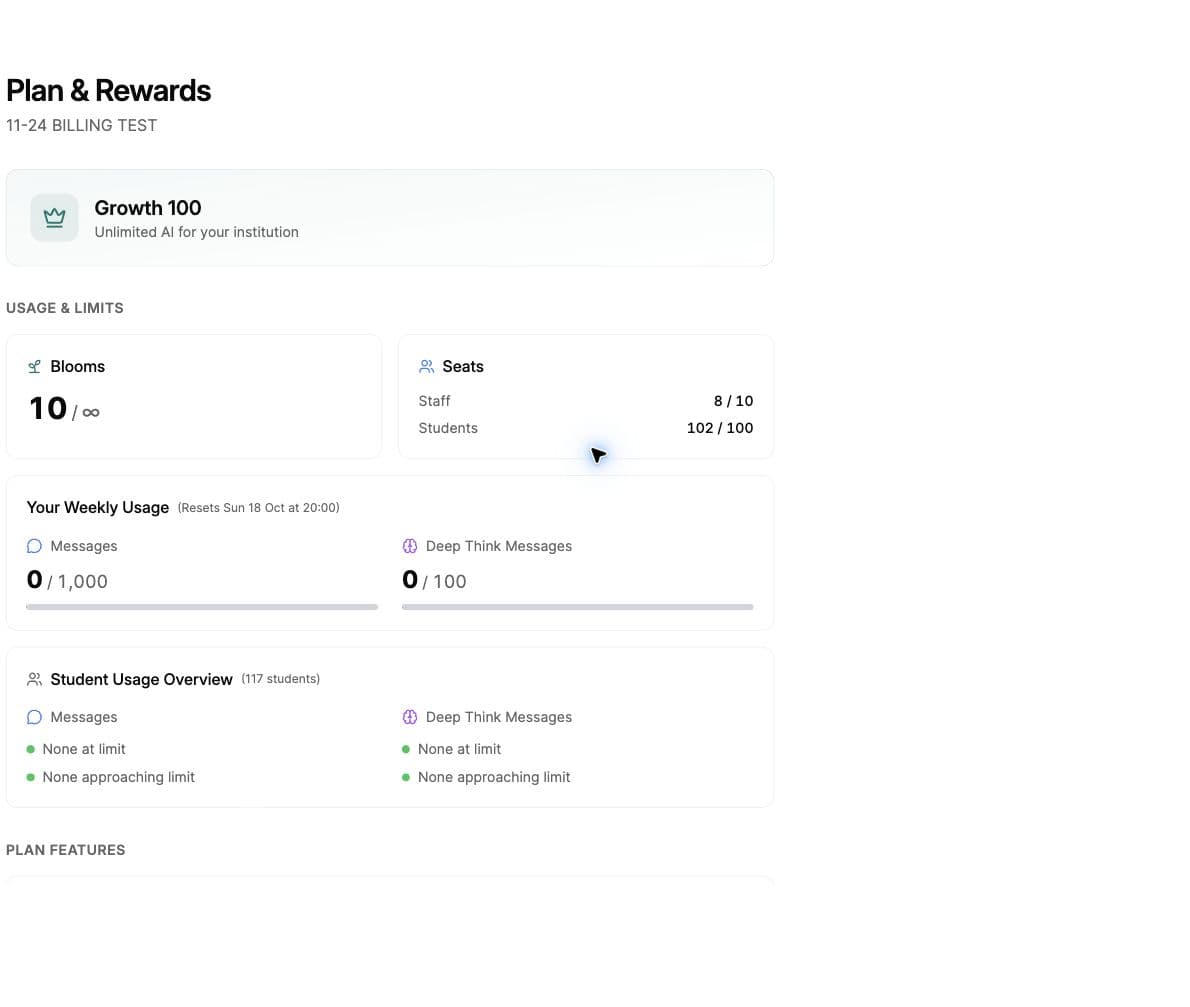
Click the Teaching Space dropdown at the bottom of the sidebar and select Plan & Benefits. The page opens with the heading Plan & Rewards and shows your current plan name (for example, Growth 30) along with seat usage, your weekly message usage, knowledge base limits, and analytics history. This is the safest place to start any subscription change because you can see at a glance whether your current usage fits the plan you are considering.
Step 2: Upgrade your plan
Open the Teaching Space dropdown and click Upgrade Plan, or go to the pricing page directly. You will land on Upgrade your Teaching Space, which lists all tiers side by side with monthly and annual toggles.
If you are on a paid plan already
Review the updated subscription and charges on the confirmation page before accepting the change:
- The change takes effect immediately the moment you confirm.
- Stripe calculates a prorated charge for the remainder of the current billing cycle and applies any unused credit from your previous tier.
- Your billing date and payment method stay the same.
If you are upgrading from Free
Enter your payment details on the checkout page and confirm your subscription. You will return to Bloom, where the confirmation page shows when your new plan is ready.
Step 3: Update payment or download invoices
For anything related to payment methods, invoices, receipts, tax IDs, or billing addresses, open the Stripe customer portal:
- Click the Teaching Space dropdown at the bottom of the sidebar.
- Click Billing (the entry with the credit card icon and the small arrow up-right indicator). It opens in a new tab.
Inside the portal you can:
- Add, replace, or remove cards on file.
- Download every past invoice and receipt as PDF.
- Update the billing email, address, and tax ID shown on invoices.
- Cancel the current subscription (covered in step 4).
If a payment fails
When Stripe reports a failed charge, Bloom shows a red Payment Failed banner on the dashboard with the message “Please update your payment method or Request Help.” Click the Manage Billing button on that banner to jump straight into the portal and replace the card. Stripe automatically retries the charge once the card is updated.
Step 4: Downgrade or cancel
Both downgrades and cancellations take effect at the end of the current billing period, not immediately. You keep all paid features until that date and Bloom shows a banner counting down the days remaining.
To downgrade to a lower tier
Open the pricing page from the Teaching Space dropdown, choose the new plan, and confirm. Bloom schedules the change with Stripe and the dashboard shows a Plan Downgrade Scheduled banner with copy like “Your plan will be downgraded to [new plan] on [date]. Update your subscription to keep your current benefits.” If you change your mind, click Renew Subscription in the banner before the downgrade date.
To cancel completely
Open the Stripe customer portal (Billing) and click Cancel subscription. The dashboard then shows a Subscription Cancelled banner that reads “Your subscription has been cancelled and will end on [date]. After this date, your space will be downgraded.” On the cancellation date, the space drops back to the Free plan. Your data is retained, and you can resubscribe at any time from the same pricing page.
Check your usage before downgrading
If your current usage exceeds the new plan’s limits (too many staff, students, or active Blooms), the downgrade may fail. A Downgrade Failed alert explains when this happens. Check seat usage on Plan & Benefits first, or read How seats and limits work, before scheduling the change.
Common issues
“Teaching space plan is already the same as the selected plan”
You clicked through to checkout for the plan you are already on. Pick a different tier, or close the tab.
“Teaching space does not have a Stripe customer ID”
Billing may not be set up for this Teaching Space yet. If you have already paid or need help accessing invoices, contact hi@bloom.study with the space name.
“Currency mismatch” on checkout
Return to the pricing page and check the currency shown before continuing. If it is incorrect or checkout still shows this error, contact hi@bloom.study for help.
The Upgrade Plan button is missing from the dropdown
Bloom only shows it for spaces on Free, Educator Plus, or Growth. Enterprise spaces manage plan changes through their account manager.
What’s next
- Compare every tier before you switch → How to choose the right Bloom plan
- Check seat headroom before downgrading → How seats and limits work
- Open your subscription now → Plan & Benefits