
Bloom’s Growth plans split your subscription into two pools: staff seats and student seats. Each user in your Teaching Space takes exactly one seat, and the kind of seat they take is decided automatically by their role. As a Space Owner, you manage seats from the Users page, where you can see live counts, invite people, change roles, and remove access to free a seat for someone else.
How seats work
Bloom assigns each person a seat based on their roles in your Teaching Space:
- Staff seat: the user is a Space Owner, or has the educator or manager role on at least one Bloom in the Teaching Space.
- Student seat: everyone else. A space member with only student enrolments takes a student seat.
Each user occupies exactly one seat in the Teaching Space, regardless of how many Blooms they belong to. If you promote a student to educator on any Bloom, they immediately become a staff seat, and Bloom checks the staff limit before saving the change.
Limits per Growth tier
Each Growth plan includes separate allowances for staff and students:
| Plan | Staff seats | Student seats | Total |
|---|---|---|---|
| Growth 30 | 3 | 30 | 33 |
| Growth 100 | 10 | 100 | 110 |
| Growth 250 | 15 | 250 | 265 |
| Growth 500 | 25 | 500 | 525 |
Enterprise plans use custom seat counts negotiated as part of the contract. Free and Educator Plus plans use the same staff/student split, just with smaller limits set on your Teaching Space.
Step 1: Check your seat usage
In the dashboard, click the Teaching Space dropdown at the bottom of the sidebar, then choose Users. The page shows every member with a Seat column labelled Staff or Student, and current totals against your plan’s limits.
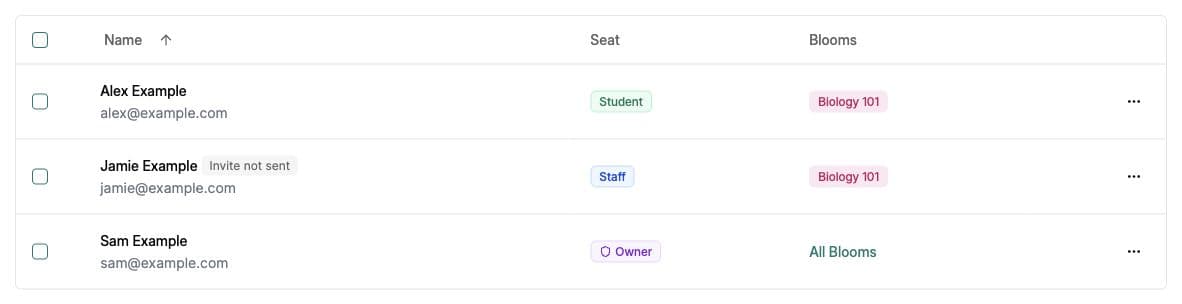
If the counts look wrong after changing or archiving users, refresh the page and check that you have selected the correct Teaching Space. If they still look wrong, contact hi@bloom.study with the space name and the counts you expected.
Step 2: Free up a seat
When the relevant pool is full, the Add User button is disabled and hovering it shows the tooltip “User limit reached for this teaching space.” You have two options: upgrade the plan, or remove someone to reclaim their seat.
To free a seat without upgrading:
- On the Users page, tick the row for the user you want to remove (or select several at once).
- Choose Archive to keep their data and history, or Remove access to end their membership of this Teaching Space. Either option frees their seat.
- A confirmation toast appears, for example “Successfully archived 3 users.” The freed seat is available right away for a new invite.
Step 3: Reassign or promote a user
Inviting a new user follows the same flow whether you are filling a freed seat or topping up a fresh one. Click Add User, enter their email, pick a Space role (Member or Owner), and assign them roles on any Blooms they should join. Bloom calculates the seat type the moment you confirm the invite.
Promoting a student to staff
Open the user’s row, change their Bloom role from student to educator or manager, and save. They will use a staff seat instead of a student seat. If you do not have a staff seat free, the change is rejected with the error: “Staff limit reached (3). Please upgrade your plan or remove a staff member.” (the number reflects your plan’s staff limit).
Demoting staff back to student
Removing all educator/manager roles from a non-owner user converts them back to a student seat on save. The staff counter goes down by one, the student counter goes up by one.
Common issues
“Staff limit reached (N). Please upgrade your plan or remove a staff member.”
You are at the staff cap. Either remove or archive a current staff member, demote one of them to a student-only role on every Bloom, or upgrade to the next Growth tier (or Enterprise) for more staff seats.
“Student limit reached (N). Please upgrade your plan or remove a student.”
Same pattern, but for the student pool. Archive students from a finished cohort, or move to a higher Growth tier. Note that on Educator Plus this error does not appear, students are uncapped.
“[email] already has access to this teaching space.”
The user is already enrolled. Search for them on the Users page and edit their existing record instead of inviting again. If they were archived, the invite flow will offer to reactivate them rather than create a duplicate enrolment.
Seat counts do not match the people in my space
Check the active users in your Teaching Space, including owners and people who belong to more than one Bloom. Each person counts once. Refresh the page after making changes. If the totals still do not match, contact hi@bloom.study for help.
What’s next
- Compare what each tier includes → Plans overview
- Upgrade, downgrade, or cancel → Managing your subscription
- Check your plan and usage → Plan & Benefits